
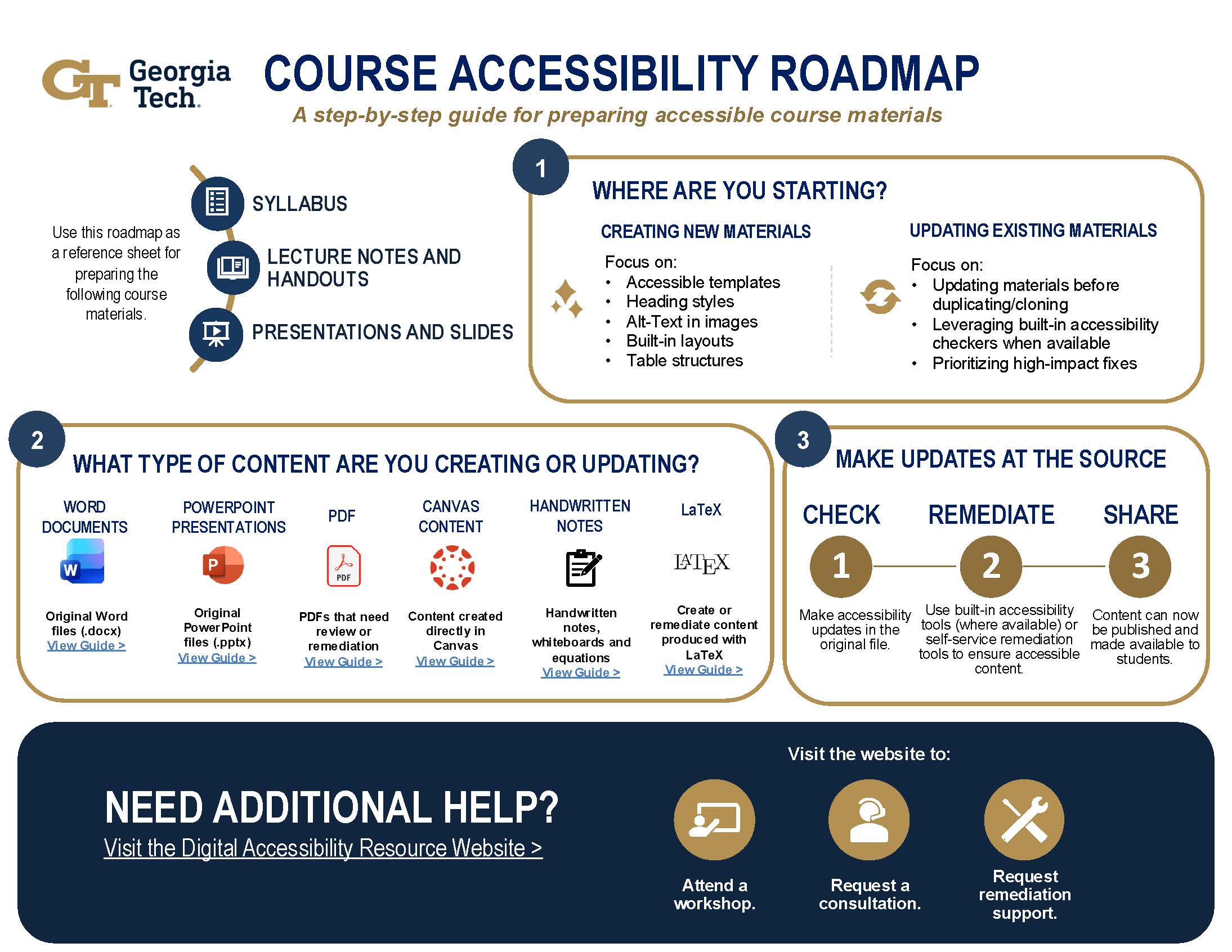
Course Accessibility Roadmap Graphic (PDF)
Creating accessible course materials can feel overwhelming, especially when you're balancing teaching, research, and other responsibilities. Knowing where to start, which tools to use, and how to prioritize updates can ease the process.
We've developed a practical guide that breaks the process into manageable steps, connects you with Georgia Tech's accessibility resources and support services, and provides clear recommendations for common course content challenges. Whether you're just getting started or looking to improve existing materials, this guide is designed to make course accessibility more approachable and achievable.
Accessibility 101
What are the requirements for instructors?
Title II requirements apply to all types of courses, including fully online, blended/hybrid, and face-to-face courses that use digital instructional materials, and to all Canvas course sites and instructional materials provided to students, such as PDFs, word processing files, spreadsheets, presentations, audio, and video.
Please read through our Title II Requirements page to learn more.
Why does accessibility matter?
Digital accessibility ensures that everyone—regardless of ability—can access information, complete tasks, and fully participate in Georgia Tech’s academic, research, and administrative activities. If you'd like more information on Georgia Tech's approach to accessibility, please explore the Our Commitment page.
Canvas
Getting Started With My Course Materials in Canvas
For many faculty, the best place to start building an accessible course is with Canvas. Explore campus resources for accessible design in Canvas.
You can utilize the Canvas Course Title II Checklist to help organize your process.
How do I start building an accessible course in Canvas?
Start by importing the Canvas Course Template. You can find step-by-step instructions on how to import the template in the Canvas Course Template knowledge article.
How do I use the Georgia Tech Canvas template?
The Canvas Course Template, a product of collaborative efforts across CTL, OIT, GTPE, and C21U, allows you to import a Georgia-Tech branded module structure that you can easily update to meet your course needs.
How do I use this template? CTL provides instructions on how to implement this resource on their blog: Module Design Made Easy: Introducing the Canvas Course Template
The Canvas Course Template features:
Module design to facilitate ease of course navigation for students;
Built-in pedagogical guidance to support expedited and effective Canvas course design;
A course navigation homepage with an embedded Canvas navigation video and links to help and support for students;
Pre-made “Start Here” and sample modules that can be duplicated and updated;
Georgia Tech branding.
Can I combine Canvas courses to make my content easier to manage?
Canvas allows instructors to move section enrollments from individual courses and combine them into one course. This feature is helpful for instructors who teach several sections of the same course and only want to manage course data in one location.
Read about FERPA Considerations Before Combining.
Learn how to use the Combine Tool in Canvas.
Please Note: When adding TA(s) to a course with combined sections, if the TA(s) only needs access to one of the sections, we recommend isolating the sections to comply with FERPA.
Remediation Support: Course Design
If you have questions about accessibility-related features within Canvas, you may contact Canvas Support 24/7 by phone, chat, or email. Canvas Support can assist with Canvas tools and features that support accessible course design.
You can ask their experts questions via email, chat, or phone at any time:
- Canvas Support Hotline (Faculty): 1-833-476-1172
- Chat with Canvas Support (Faculty): Live chat with Canvas Support!
- Email: support@instructure.com
Please note that Canvas Support does not provide support for Ally or comprehensive accessibility remediation services for course content.
There are many Canvas support events that happen throughout the semester and Georgia Tech Canvas experts will be happy to help you design an accessible Canvas course. Visit the Canvas Training Options page to find a session that suits your schedule.
Evaluate Your Canvas Course for Accessibility: Ally and TidyUp
How do I evaluate my Canvas content?
- Use TidyUp to Clean Course Content
- Review Ally Accessibility Report and Scores (Additional resource: Ally for Instructors: Microlearning for Accessible Teaching on Vimeo)
- Fix Accessibility Issues Identified by Ally
- Perform a Final Review Using the Accessibility Checklist
CTL faculty member Ameya Sawadkar wants to help Georgia Tech instructors tackle course accessibility one step at a time. To help streamline the process, Sawadkar created the Canvas Course Title II Checklist. The checklist, which is available through Service Now, walks instructors through common accessibility issues in Canvas as well as ways (and tools) to fix each issue.
The Canvas Course Title II Checklist is divided into seven sections:
- Text Formatting
- Hyperlinks
- Images and Alternative Text
- Document Accessibility
- Tables
- Video and Audio
- Navigation and Course Structure
Canvas Course Checklist for Title II Compliance KB Article
You can find additional guidance on the CTL blog:
Canvas Accessibility: A Checklist for Success
Title II Web Accessibility & Canvas: What the New Guidelines Mean for You
Here's a link to a WebAIM resource for best practices for accessible tables: Creating Accessible Tables Article
Remediation Support: Ally
Ally (formerly known as Blackboard Ally) automatically checks Canvas course content for common accessibility issues and offers detailed guidance on how to resolve problems. Ally can also automatically generate alternative forms of digital content, including audio and electronic braille. The accessibility report (accessed from the navigation menu in the course) and the accessibility score (seen next to content in your course like pages, uploaded files, etc.) are features of Ally that instructors can leverage in their courses. Both features highlight areas that need attention and offers practical guidance on how to make improvements.
Remediation Support: TidyUp
TidyUp helps instructors remove course clutter by quickly identifying outdated, unused, or duplicate materials in Canvas. Instructors can then delete those files to create a more accessible course.
Remediation Support: Personalized
There are many Canvas support events that happen throughout the semester and Georgia Tech Canvas experts will be happy to help you evaluate the accessibility of your course during those sessions. Visit the Canvas Training Options page to find a training session that suits your schedule.
In addition, 24/7 support is provided by Canvas, which means that you can ask their experts questions via email, chat, or phone at any time:
- Canvas Support Hotline (Faculty): 1-833-476-1172
- Chat with Canvas Support (Faculty): Live chat with Canvas Support!
- Email: support@instructure.com
Build and Remediate Accessible Materials
This section provides guidance for creating and remediating accessible course materials, including documents, presentations, multimedia, websites, and specialized content such as mathematical equations, charts, and handwritten notes. It offers practical strategies to help ensure digital content is accessible and usable for all learners.
Documents: Microsoft Word
Produce Accessible Word Documents
Georgia Tech has recorded a help session that provides a basic overview on how to create accessible Microsoft Word, PowerPoint, and PDF Documents. Specific “how to” instructions are provided on how to ensure these file types are created in an accessible format from the beginning. Instructions are also provided on how to check for, and fix, the accessibility of an existing document. This training applies to all content creators.
Here's a link to watch the help session.
Our peers at The Ohio State University have produced a step-by-step guide to instruct users on how to produce an accessible word document.
Test Existing Word Documents for Accessibility
Our peers at The Ohio State University have produced a step-by-step guide to instruct users on how to evaluate preexisting Word documents for accessibility.
Here's the link to The Ohio State University's Evaluation Instructions.
Georgia Tech has recorded a help session that provides a basic overview on accessible Microsoft Word, PowerPoint, and PDF Documents. Instructions are also provided during this session on how to check for, and fix, the accessibility of an existing document. This training applies to all content creators.
Here's a link to watch the help session.
Get Remediation Support: Allyant
Allyant provides professional accessibility remediation services for documents that require advanced remediation support.
Who should use this tool? Individuals or teams, instructional designers, and accessibility specialists who need assistance with high-volume, highly complex, or externally facing documents, like PDFs, that require professional remediation support.
Turnaround time? After submission of documents for remediation, please expect a wait three to five business days for your accessible documents to be returned to you.
Allyant services may include:
- PDF remediation
- Microsoft Office document remediation
- Accessibility quality assurance reviews
- Remediation of complex documents and publications
How do I gain access to the tool? Users must be provided with an access code before creating an account. Contact gtaccessibility@gatech.edu for assistance.
Service link: Open Allyant remediation services
You can find instructions on how to do Manual Document Remediation with Allyant Accessibility Services in this help article.
Documents: PDFs
Georgia Tech has acquired a new PDF remediation tool: Allyant CommonLook. The Digital Access team currently recommends Allyant CommonLook for self-managed PDF remediation and Allyant's personalized remediation services for large-scale or complex PDF document remediation services. Please explore both sections, below, to determine the best path for your remediation needs.
Produce Accessible PDFs
An accessible PDF can be read, navigated, and used by all individuals, including those who rely on assistive technologies such as screenreaders.
A key element of PDF accessibility is proper tagging. Tags provide the document's structure and help assistive technologies interpret and present content in a meaningful order. However, tagging alone does not ensure accessibility. Other factors, such as alternative text, readingorder, color contrast, and navigability, must also be addressed.
Adobe provides an overview of accessibility features in its article titled What is an accessible PDF?
Georgia Tech has recorded a help session that provides a basic overview on how to create accessible Microsoft Word, PowerPoint, and PDF Documents. Specific “how to” instructions are provided on how to ensure these file types are created in an accessible format from the beginning. Instructions are also provided on how to check for and fix, the accessibility of an existing document. This training applies to all content creators.
Here's a link to watch the help session.
Test Existing PDFs for Accessibility
Georgia Tech recorded a help session that provides a basic overview on how to create accessible Microsoft Word, PowerPoint, and PDF Documents. Instructions are also provided in this session on how to check for and fix, the accessibility of an existing document. This training applies to all content creators.
Here's a link to watch the help session.
Get Remediation Support: Allyant CommonLook
In response to faculty feedback, we are pleased to announce that Georgia Tech has acquired a new PDF remediation tool: Allyant CommonLook. Faculty will automatically receive access through their Georgia Tech account.
OIT has provided instructions on how to, “Make a PDF Accessible with the CommonLook Simplified Editor.” Additional help resources, video tutorials, and training opportunities for CommonLook will be made available on the Digital Access website the week of Aug. 24.
How to Access Your Allyant CommonLook Account:
CommonLook access is available to all Georgia Tech faculty as of today. If you are a staff member or graduate teaching assistant and will need access to this tool for instructional purposes, please email gtaccessibility@gatech.edy to request access. The Digital Access team will make an account available to you.
If this is your first time accessing your CommonLook account, select the “Reset Password” and follow the prompts to reset your password using your primary Georgia Tech email associated with your GTID (ex. gburdell3@gatech.edu).
A link will be sent to your email for you to set your password and access your account.
Get Remediation Support: Allyant Professional Remediation Services
Allyant provides professional accessibility remediation services for documents that require advanced remediation support.
Who should use this tool? Individuals or teams, instructional designers, and accessibility specialists who need assistance with high-volume, highly complex, or externally facing documents, like PDFs, that require professional remediation support.
Turnaround time? After submission of documents for remediation, please expect a wait three to five business days for your accessible documents to be returned to you.
Allyant services may include:
- PDF remediation
- Microsoft Office document remediation
- Accessibility quality assurance reviews
- Remediation of complex documents and publications
How do I gain access to the tool? Users must be provided with an access code before creating an account. Contact gtaccessibility@gatech.edu for assistance.
Service link: Open Allyant remediation services
You can find instructions on how to do Manual Document Remediation with Allyant Accessibility Services in this help article.
Documents: PowerPoint Presentations
Produce Accessible PowerPoint Presentations
Our peers at the University of Arizona have created a step-by-step guide to Creating Accessible Word and PowerPoint Documents.
Test Existing PowerPoint Presentations
PowerPoint has a built-in accessibility checker. To locate this tool in PowerPoint, follow the below instructions:
- Review tab → Check Accessibility
- Address each error and warning
- Pay special attention to reading order and missing alt text
Our peers at the University of Arizona have created a step-by-step guide to Creating Accessible Word and PowerPoint Documents. At the bottom of this guide, you'll find a Quick Checklist for PowerPoint accessibility.
Get Remediation Support
CTL Offers free, one-on-one consultations for instructors who need additional assistance with the creation or remediation of their course materials. You can request a consultation through this form.
In addition, CIDI offers remediation services for a fee for complex documents (this includes PowerPoint presentations). You can find more information about those services on their Document Accessibility Services (DAS) page.
Equations and Formulas: LaTeX
Create Accessible Equations and Formulas with LaTeX
If unmodified, LaTeX documents lack certain key accessibility features, such as an underlying semantic structure with headings and tags, that are found in Microsoft Word documents. Therefore, some extra steps are needed.
Please take time to review the instructions outlined in OIT's article: Create Accessible Equations and Formulas with LaTeX, Canvas, and Overleaf
CIDI has also provided a helpful video on "Creating Accessible Word, PDF, and PowerPoint files. Watch the video.
Making LaTeX Documents Accessible
To produce accessible output, you will need to implement additional measures after creating the basic LaTeX document.
- Please follow the instructions provided by The LaTeX Project on "Using LaTeX to produce accessible PDFs."
- Please Note: Even after taking these steps, you may find it difficult to generate a truly accessible PDF. This is especially true given the problems involved in remediating PDFs generally, whether they contain LaTeX or not. You may therefore find it easier to display your LaTeX in HTML, which is inherently more accessible than a PDF.
For additional information about creating accessible equations, explore the University of Chicago’s accessible equations page, Southeast Missouri State University’s accessible equations guide, and the University of Michigan’s guide to accessible mathematical documents.
Create Accessible PDFs with LaTeX
For help creating accessible PDFs in LaTeX, watch this online workshop led by Hunter Lehmann in the School of Mathematics.
You can also explore the University of Wisconsin-Madison’s resource on accessible documents and LaTeX, the Ohio State University’s LaTeX accessibility guide, and Grand Valley State’s LaTeX accessibility guide.
Test Existing Materials Produced with LaTeX
Currently, there is no fully automated process for converting LaTeX to PDF that eliminates the need for manual review. PDFs generated from LaTeX must be examined, verified for accessibility, and remediated as needed.
If you create a PDF from LaTeX, you should evaluate it using the tools and procedures outlined in the PDF Accessibility Guidelines or use an approved accessibility remediation service or tool, if available. Educational Technology Services (ETS) is developing additional guidance, documentation, and examples specific to LaTeX-generated PDFs and will share those resources when they become available.
Our peers at The Ohio State University have created a helpful LaTeX Accessibility Guide with steps to help you review your existing equations and formulas.
Georgia Tech also has a helpful knowledge article on how to Create Accessible Equations and Formulas with LaTeX, Canvas, and Overleaf.
If you are in doubt about how best to navigate accessibility when using LaTeX, please reach out to the Digital Learning Team at canvas@gatech.edu.
Get Remediation Support: Mathpix
Mathpix converts mathematical and scientific content from PDFs, images, and other formats into accessible, editable digital content.
Use Mathpix to:
- Convert mathematical notation using optical character recognition.
- Convert content to MathML and LaTeX.
- Remediate accessible STEM content.
- Support legacy documents and course materials.
Best for: Students and faculty working with complex mathematical or scientific content.
Access:
- New Mathpix users should submit the Mathpix Access Request Form to request account provisioning. Allow 1 to 2 business days for your account to be provisioned.
- Existing Mathpix users can use the same Mathpix Access Request Form to request to be added to Georgia Tech’s enterprise account.
- Once an account has been created, users can access Mathpix through the Snip web application or install the desktop or mobile app.
Mathpix options:
- Use Snip on the web (provides full markdown editor with PDF conversion support)
- Download the Mathpix desktop app (for Windows and Mac)
- Download the Mathpix mobile app (For iOS and Android)
Knowledge Article: Mathpix: Convert Math & Scientific Content into Accessible Formats
Get Remediation Support: Other
In general, there is no “one size fits all” solution for LaTeX accessibility. Given the vast number of ways in which LaTeX environments can be customized, each user is likely to have unique needs and challenges. If you are in doubt about how best to promote accessibility in your document, please reach out to the Digital Learning Team at canvas@gatech.edu.
Math and Scientific Equations: MathType
MathType is an equation editor that allows students and faculty write mathematical and scientific notations that are precise, professional, and accessible to assistive technologies such as screen readers. Georgia Tech provides MathType to faculty and students to support accessible STEM course materials in line with ADA Title II and WCAG standards.
Create Accessible Math and Scientific Equations: MathType
Before you get started, ask yourself, “Which tool do I choose - MathType or Mathpix?”
Use MathType to create new accessible equations from scratch in Word, PowerPoint, or Google Docs/Slides.
Use Mathpix to convert existing or scanned math (in PDFs or images) into an accessible, editable format you can then refine.
What you can I do with MathType?
- Create accessible equations that screen readers can interpret, using built-in MathML support.
- Write mathematical notation directly in Microsoft Word, PowerPoint, Google Docs, and Google Slides.
- Use ChemType for chemical formulas, reactions, and periodic-table elements.
- Produce consistent, professional math typesetting across documents and presentations.
Activation and Set Up — Georgia Tech product key required
MathType requires a product key to activate. Georgia Tech faculty and students should use the Institute key below when prompted during installation or first use. Please consult with your local IT support team if admin approval is needed to install software on your device.
Visit our knowledge article, MathType: Create Accessible Math & Scientific Equations, to find the activation key and more information on how to set up MathType.
Using MathType
Once you have MathType installed, the following video tutorial will help guide you through using the tool within the M365 environment. Video tutorials
Test Existing Materials for Accessibility
Need to convert existing or scanned math (PDFs, images) into an accessible format? Use Mathpix — see the companion knowledge article.
Get Remediation Support
To remediate existing content, you will instead use Mathpix. However, if you need help with your new content in MathType, you have two options for personalized support:
- Wiris product support: support@wiris.com
- Georgia Tech Digital Accessibility Program: gtaccessibility@gatech.edu
Please also check Our Upcoming Workshops page for MathType training sessions and workshops. There will be a number of these events held throughout the semester.
Video, Audio, and Multimedia
Captions and Transcripts
The Center for Teaching and Learning created a 30 min. video on audio and video accessibility. The video covers captions, audio descriptions, transcripts (media alternatives), and live captions.
Our peers at the University of Arizona have also created a step-by-step guide to video captioning.
Alt Text
The Center for Teaching and Learning created a 30 min. video on the topic of alt text. The video covers alt text essentials for instructional content, when to mark an image as decorative, and how to create instructionally effective alt text for images.
Test Existing Video, Audio or Multimedia Content for Accessibility
Our peers at The Ohio State University have created a step-by-step guide to testing the accessibility of multimedia materials for courses.
Explore the multimedia accessibility testing guide from The Ohio State University.
Handwritten Notes
Creating Accessible Notes: OneNote and MathPix
If course materials contain handwritten notes, those notes should be converted to typed digital text whenever possible. Because handwritten content is not consistently readable by screen readers and other assistive technologies, transcription or OCR-based conversion is necessary to provide accessible access to the information.
For basic or text-only conversations, please utilize OneNote.
You can find instructions on how to use OneNote in our knowledge article: Converting Handwritten Notes Using OneNote Desktop App
For complex conversations that include math, please utilize MathPix.
You can find instructions on how to use Mathpix in our knowledge article: Mathpix: Convert Math & Scientific Content into Accessible Formats.
Get Remediation Support
For basic or text-only conversations, please utilize OneNote
You can find instructions on how to use OneNote in our knowledge article: Converting Handwritten Notes Using OneNote Desktop App
For complex conversations that include math, please utilize MathPix.
You can find instructions on how to use Mathpix in our knowledge article: Mathpix: Convert Math & Scientific Content into Accessible Formats.
If you need additional, individualized support with converting handwritten notes:
CIDI offers Document Accessibility Services (DAS) for a fee and can assist with remediation. The CIDI team creates a wide variety of file formats that can be read aloud using assistive technology.
Please see CIDI's Accessible Features and Pricing Table to easily compare file formats and learn about their accessibility features.
For help in selecting a file format or learning more about DAS services, such as accessibility trainings, document audits, or consultation hours, please contact the CIDI Customer Support team at cidi-support@design.gatech.edu or (404) 894-7756.
Note: There are some issues that the CIDI DAS team struggles to remediate, such as illegible text or handwritten examples, tables with merged or empty cells, images with poor resolution, and issues with poor color contrast. They may reach out to customers when we encounter these issues, as it’s not always possible for us to fix these ourselves.
Websites
Title II requires public entities to ensure that their digital content is accessible to people with disabilities. This includes any Georgia Tech website or website used in instruction for which you are the owner or primary site manager. Georgia Tech websites must be usable by individuals who rely on assistive technologies such as screen readers, keyboard navigation, captions, or alternative input methods.
Create Accessible Websites
Georgia Tech's Web Accessibility Checklist is designed to help content owners, including campus communicators, review their digital content, create new digital content, and meet these expectations in a practical, manageable way.
Who needs to make sure a website is accessible? Website owners, content managers, communicators, and web developers responsible for maintaining Institute websites.
Claiming a Georgia Tech Website
Georgia Tech's Web Accessibility Checklist is designed to help content owners, including campus communicators, review their digital content and meet these expectations in a practical, manageable way.
Who needs to make sure a website is accessible? Website owners, content managers, communicators, and web developers responsible for maintaining Institute websites.
If you're an existing owner or primary content manager of a website, Georgia Tech maintains a centralized inventory of Institute-owned websites in ServiceNow. This inventory serves as the official system of record for web assets and supports accessibility governance, monitoring, reporting, and remediation planning across the Institute.
Please take some time to Open the Website Asset Inventory and claim your site. You can follow the instructions in our knowledge article, "Claiming Your Website in the Web Asset Inventory" to ease the process.
Georgia Tech uses the Website Asset Inventory to:
- Maintain a centralized record of Institute web assets.
- Track website ownership and stewardship.
- Support accessibility compliance reporting.
- Connect web assets with enterprise accessibility monitoring efforts.
Testing an Existing Website for Accessibility
DubBot is Georgia Tech’s enterprise website accessibility scanning platform. It is used to identify, monitor, and track accessibility issues across websites.
Who should use DubBot? Website owners, content managers, communicators, and web developers responsible for maintaining Institute websites.
Access: Log in to DubBot
Use DubBot to:
- Scan websites for accessibility issues.
- Monitor WCAG compliance.
- Identify content quality issues and broken links.
- Review prioritized accessibility issues.
- Find remediation guidance for website owners.
Follow the instructions in our knowledge article: Getting Started with Web Accessibility Scanning in DubBot: Key Resources and Links
Get Remediation Support
DubBot’s full Help Center includes step-by-step guides, tutorials, and FAQs to support your accessibility work.
Visit the Help Center:
https://help.dubbot.com/en/
We encourage all site owners and content managers to explore these resources to strengthen their understanding of accessibility best practices and DubBot functionality.
Request a Dedicated Training Session
If your team would benefit from a live walkthrough or customized training session with our program team, you may request one here (Note: Please only request a session if you have already been onboarded into DubBot via the Web Asset Inventory):
Web Accessibility Tool Training Sign-Up – Microsoft Form
The team is happy to provide:
- Role-based walkthroughs
- Site-specific review sessions
- Remediation strategy guidance
- Q&A sessions
Using Archived Materials
What are the exceptions for use of archived content in my course?
Before utilizing archived materials in your course, please ensure these materials meet the four exceptions listed under Archived Web Content on the Title II Exceptions page.
These four exceptions are:
- Archived Web Content
- Preexisting Conventional Electronic Documents
- Third-Party Content Not Under Institutional Control
- Individualized, Secure Documents
You can find detailed information about each category on the Title II Exceptions page.
When reviewing digital content, it is important to apply these exceptions carefully and consistently. If you have questions about whether an exception applies to specific content, please contact gtaccessibility@gatech.edu.
Get Remediation Support
Title II exceptions are limited and conditional. They do not eliminate the obligation to provide meaningful access to programs, services, and activities. When accessibility barriers affect a person’s ability to access essential information or services, Georgia Tech may still be required to provide accessible alternatives or remediation.
When in doubt, consult gtaccessibility@gatech.edu for guidance on remediating this content.
I Need More Help
- ADA requirement questions:
Email the Office of Equal Opportunity, Compliance, and Conflict Management ADA Compliance Team - For practical questions about updating your materials:
Email the GT Accessibility team - One-On-One Consultations:
- General questions:
Email the Office of the Provost
Events and Workshops
Georgia Tech offers regularly scheduled training sessions and workshops featuring demos on Title II, Ally, Canvas templates, accessible documents, images, video, and audio.
There are also monthly Accessibility Sprints and Roundtables covering accessible documents, images, PDFs in LaTeX, audio/video, UDL strategies, Canvas navigation and structure, and more.